One killer capability has been largely missing on iOS devices and thereby preventing them from being productivity devices as well as consumption devices: the lack of a good file management option. Many users need a fast, reliable way to synchronize files between their iOS and OS X devices. With iOS 9, Apple included a new app called iCloud Drive that lets you peruse files synced with the service, open them on your iOS devices and even attach them to emails without being near your Mac. Let’s take a look at how you can easily do all of this and more.
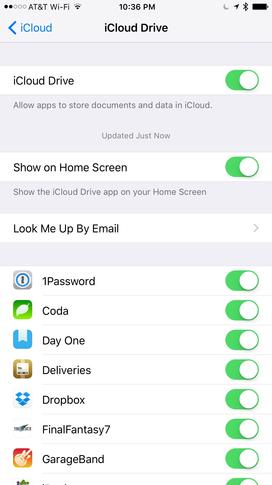
Figure A. Click to expand.
How to enable the iCloud Drive app
The iCloud Drive app is available on all iOS 9 devices that are connected to an iCloud account. To enable this app (which is hidden by default), perform these steps:
- Open the Settings app
- Navigate to iCloud | iCloud Drive
- Enable the option for Show on Home Screen (Figure A)

Figure B. Click to expand.
Browse and open files in the iCloud Drive app
When you want to browse files, open the iCloud Drive app. It will always be up to date with current files stored in your iCloud Drive account. Additionally, the folders and files in the iCloud Drive app will mirror what’s on your other iCloud-enabled devices. Here, you can peruse the folder structure and the files contained in each folder (Figure B).
Open and edit files
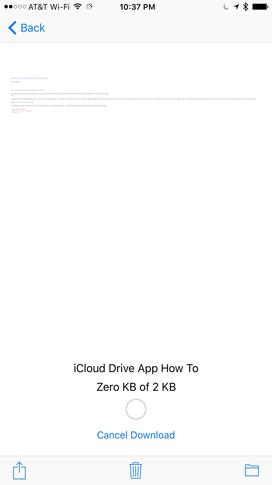
Figure C. Click to expand.
When you find a file that you wish to open, tap it. A preview will open, and the file will start downloading locally to your device (Figure C). You can delete or move the file by tapping on the trash can or folder icon. If you wish to open the file to edit it in an app, click the Share button. Compatible apps that can open the file will be displayed, so simply tap the one you prefer.
Attaching files from the iCloud Drive app
When you wish to share a file via email, you can do so right from within the new email compose flow. Here’s how:
Figure D. Click to expand
- Open the Mail app
- Start a new email or start a reply to an existing message
- Tap once in the new message body to make the context menu appear
- Select Add Attachment (Figure D)
- In the file browser that appears, you should see the iCloud Drive contents; if not, select Locations | iCloud Drive
Add Attachment opens the new attachment selector interface available in iOS 9. Once you select a file in the file browser, the file will be downloaded from iCloud Drive and attached to the email that you’re sending.
That’s it! Now that you know how to leverage file management on iOS devices, there’s no stopping your increasing productivity.