The Problem:
A company-owned device is issued to an employee. The employee uses his or her own Apple ID and iCloud account to activate and deploy Activation Lock and Find My iPhone on the device. This is a feature Apple built into iOS 7 and beyond as a theft deterrent. The good news is that security has been enhanced given that a thief can no longer simply wipe the device to use it. The bad news is … neither can your IT department!
There are only a couple of solutions to this “after the fact”:
- The employee must be contacted to have him/her remove the device from the personal iCloud account remotely. I have included step-by-step instructions below on how to do this. Or, if you can get the employee’s iCloud credentials, the IT department could also proceed with following the instructions on the individual’s behalf.
- Contact Apple and beg for help! If you have very specific proof of purchase for that particular device ID/serial number, customer service can assist you with removing the device from the former employee’s account.
The Plan:
The best way to reduce your headaches surrounding this issue is to include planning and prevention regarding user Apple IDs and iCloud Activation Lock in a Mobile Device Usage Policy (MDUP) for company-owned devices.
- Consider managing company-owned devices, especially check-out or shared iPads, by using an IT-issued AppleID and iCloud account on the devices tying the locations services/Find My iPhone to that account. Prevent users from using their personal accounts by setting restrictions available when supervising the device via Apple Configurator or DEP.
- If your company culture requires a more “open” policy toward ability for users to use their Apple IDs on company-owned devices, be sure to include verbiage in your MDUP that requires the employee to remove all personal accounts from the device, including the iCloud account (changing the “Find My iPhone” toggle to off at Settings/iCloud/Find My iPhone), before returning the device at termination. Refer to the documentation below for details, and include the instructions when issuing company-owned devices. Your HR department can help you enforce this by withholding last pay until all devices have been returned and confirmed “clean” of any iCloud account, for example.
NOTE: If a user has forgotten his/her password, use the “Forgot Password” option on the iCloud website to reset it and then remove the device from the individual’s account as instructed.
Step-by-step instructions for removing a device from an iCloud account remotely from the iCloud website
What you need to know first
Before beginning, please note that the original owner of the device will need to know the iCloud email address and password that is currently tied to the device. Without that, there is no way to bypass Activation Lock or Find My iPhone. The original owner will need to perform the following steps, unless you know his/her iCloud info and can do it yourself.
- Turn the iPhone or iPad in question off or put it in airplane mode. If the device is on and Find My iPhone has an active location, it will not allow you to delete it from your account. If someone else has the device, advise them to power it down.
- From a desktop computer, go to www.icloud.com/#find and sign in using the iCloud ID that is currently tied to the iPhone or iPad in question.
- You should immediately be taken to Find My iPhone, but if you aren’t, just click on Find My iPhone from the Home menu.
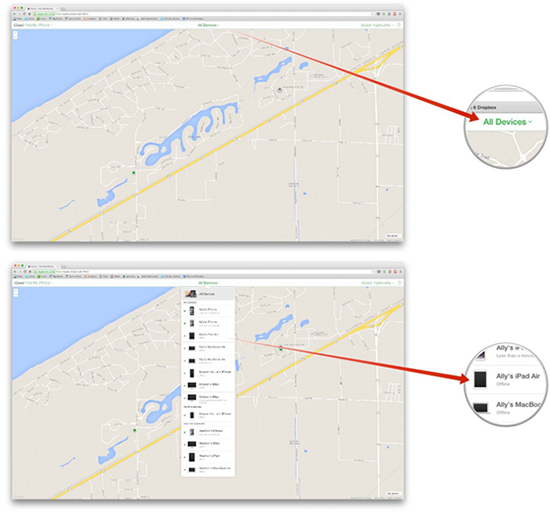
- Click on All Devices at the top of the Find My iPhone screen.
- Find the device in question in the list and click on it — it must show up as offline in order for you to be able to remove it.
- Choose the device and click on Remove from Account.


That’s all there is to it! The new owner should now be able to restore the device and activate it just as if it were a brand new device. He or she can then link it up to the appropriate iCloud account.